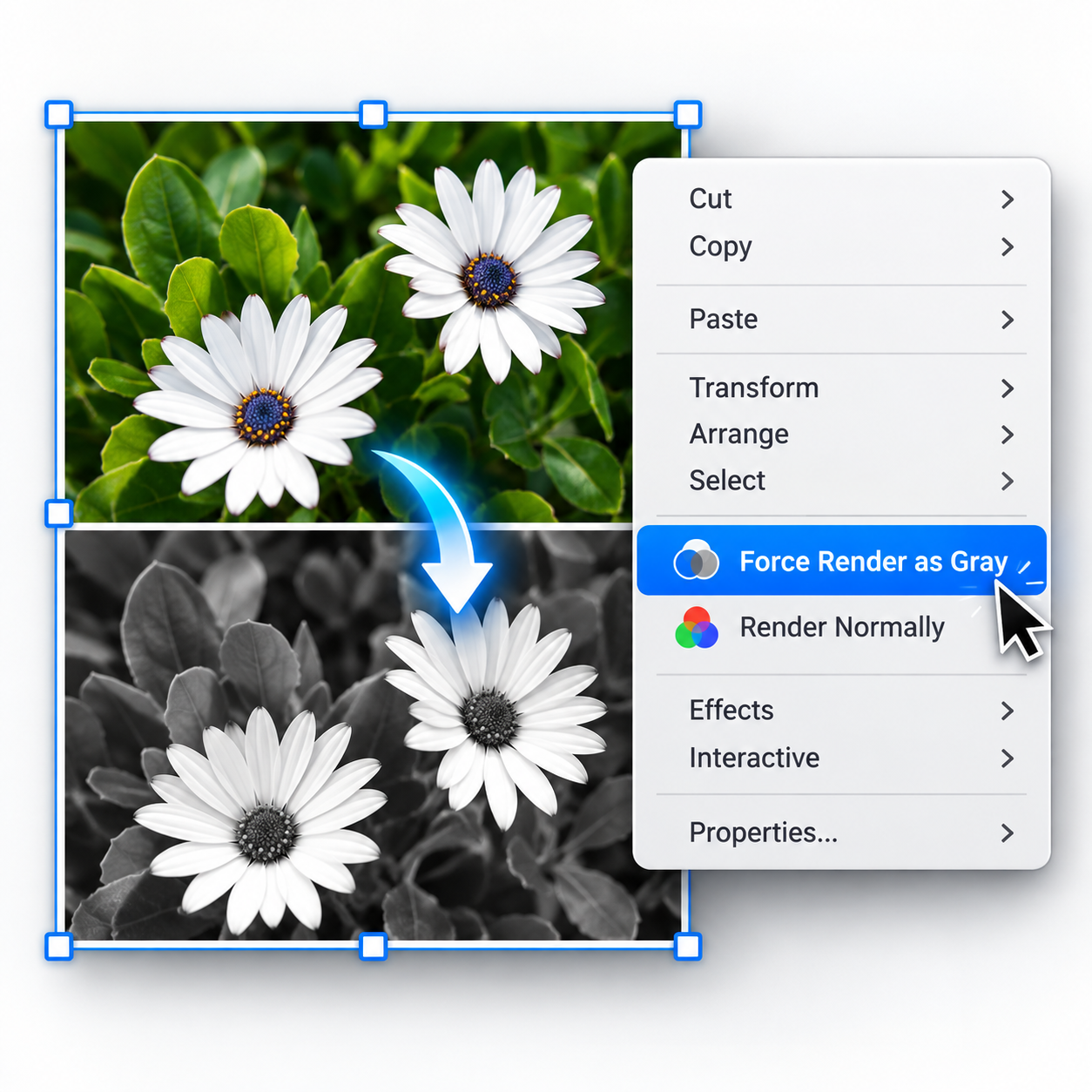
Convert placed color images to grayscale straight in InDesign. No Photoshop round-trip, no duplicate files. Your original images on disk are never changed.
What it does
Select a color image in InDesign and choose Force Render as Gray either from the image’s context menu or from the API menu. That’s it.
Color2Gray PL uses Adobe® InDesign®’s built-in color conversion to show, print and export the image in grayscale while the file on your hard drive stays untouched.
For CMYK output the image prints on the black (K) plate only, in true grayscale reproduction. Choose Render Normally on the same image to switch back.
This instead of: open each photo in Photoshop → convert → save a second file → relink in InDesign → manage twice as many files.
Good for
-
Black-and-white printing of color ads and photos
-
Mixed layouts: some images color, some grayscale, same page
-
Client proofs showing how color will reproduce in grayscale, non-destructively
-
Printing grayscale without creating duplicate image files
-
Quick “how would this look in B&W” experiments
How to use
-
Select one or more color images.
-
Open the context menu: right-click (Windows) / Control-click (Mac), or open the API menu in the menu bar.
-
Choose Force Render as Gray.
-
Done. The image now renders gray. To undo, choose Render Normally the same way.
Which images work
| Works well | Not supported |
|---|---|
| JPEG, TIFF, PNG, simple bitmap photos | Vector art (Illustrator, EPS), complex multi-layer PSD, placed InDesign documents |
Complex Photoshop files sometimes work if you save them as TIFF first.
Limits
-
Uses InDesign’s default color-to-grayscale conversion. For custom curves or channel mixing you still need Photoshop.
-
Always check printed output before going live on color-critical images.
System requirements
- InDesign 2026 or newer, macOS or Windows
- APID ToolAssistant PL, a free supporting plug-in
- PluginInstaller for installation and licensing
Installing Color2Gray PL
Color2Gray PL needs APID ToolAssistant PL, a free helper plug-in.
- Download, install and start PluginInstaller. Close InDesign. Clicking the following two links will trigger PluginInstaller.
- Click this link to fetch APID ToolAssistant PL: APID ToolAssistant PL. Then click the Install… button or click the … button to see all install options.
- Click this link to fetch Color2Gray PL: Color2Gray PL. Then click the Try… or Install… button, or click the … button to see all install options.
- Restart InDesign and open or create a document.
PluginInstaller installs the files for you, including the native Color2Gray plug-in and its SPLN component. If you install Color2Gray PL before APID ToolAssistant PL, PluginInstaller will warn you that APID ToolAssistant PL must also be installed before it will work.
Alternatively, you can install this software directly from PluginInstaller. Select Available Software, then scroll through the list and/or use the Search box to locate APID ToolAssistant PL or Color2Gray PL.
Earlier InDesign versions
Installation through PluginInstaller requires InDesign 2026 or newer. For earlier versions, install the plug-in files manually, including both the native plug-in and the SPLN component; PluginInstaller is still required for activation. See the earlier-version Color2Gray page for manual installation information.
Updating
Quit InDesign before updating. Use PluginInstaller to install the latest Color2Gray PL version for your InDesign version.
Pricing and licensing
- 20-day free trial: full functionality, no restrictions.
- $29 USD per computer, per year (excluding tax), with annual renewal.
- No paid APID ToolAssistant license is required to run Color2Gray PL.
To buy after the trial, find Color2Gray PL in PluginInstaller’s Available Software list. Choose Buy from the … menu and follow the checkout. Register an account if you do not already have one. Keep your unlock code written down in a safe place: if you lose it, it cannot be retrieved.
Troubleshooting
No “Force Render as Gray” in the context menu?
- Confirm APID ToolAssistant PL is installed for your version of InDesign.
- Confirm Color2Gray PL is installed for the same InDesign version. Its native plug-in and SPLN component are both needed; PluginInstaller installs them together.
- Restart InDesign, open or create a document and select an image.
Image won’t convert? Best with JPEG, TIFF and PNG. Save complex Photoshop files as TIFF and retry. Vector graphics are not supported.
Remove a conversion: Right-click the image and choose Render Normally. The original image file is never changed.
Who should use Color2Gray
- Publishers — Quick grayscale conversion for mixed-format publications
- Designers — Experiment with black-and-white looks without permanent changes
- Print shops — Handle client requests for grayscale output efficiently
- Magazine and newspaper producers — Convert color content for black-and-white sections
- Anyone who regularly switches between color and grayscale images
Ready to try it? Install Color2Gray PL by way of PluginInstaller and start your free 20-day trial today!