What does StoryParker do?
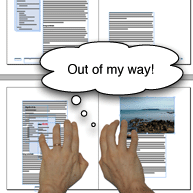
Simple answer: StoryParker temporarily moves page elements out of your way, then returns them to their exact original positions with a single click.
Instead of manually dragging objects around and trying to remember where they came from, StoryParker “parks” them safely on the pasteboard and remembers their home location.
Stop the cluttered page shuffle
The old way: When working on complex layouts, you often need to:
- Move objects out of the way to reach something underneath
- Try to remember where each moved object originally came from
- Manually drag items back to approximate positions
- Lose precise alignment when replacing objects
- Spend time reorganizing cluttered pages
The new way: Right-click any object and choose “Park”. It moves to the pasteboard but remembers exactly where it came from. Click “Unpark” and it flies back to its precise original location.
Perfect for these situations
- Complex layouts: Working on multi-layered designs with overlapping elements
- Detailed editing: Accessing objects hidden behind other elements
- Client reviews: Temporarily hiding elements to show different layout options
- Template creation: Moving placeholder content out of the way during setup
- Cleanup work: Organizing cluttered pages without losing positioning
- Design exploration: Trying different arrangements without commitment
How parking works
Simple workflow
- Select objects. Any page item or group of threaded text frames
- Right-click and choose “Park”. Objects move to pasteboard automatically
- Work freely. Objects are safely out of the way
- Right-click parked objects and choose “Unpark”. They fly back to exact original positions
Smart memory system
- Remembers precise coordinates: Returns objects to pixel-perfect positions
- Handles grouped objects: Maintains relationships between elements
- Tracks threaded text: Entire stories can be parked and unparked together
- Multiple objects: Park different elements at different times
Real-world examples
Multi-layer design cleanup
You’re working on a magazine spread with photos, text boxes, graphics, and overlays. To adjust the background image, you need to access something buried underneath multiple layers.
Without StoryParker: Manually drag 12 objects to various spots around the page, try to remember where each came from, spend time getting everything back to the right positions.
With StoryParker: Right-click and park the objects that are in the way. Make your edits. Unpark. Everything returns to exactly where it was.
Template development
You’re creating a newsletter template with placeholder content that needs to be moved around during client presentations.
Without StoryParker: Create separate template versions, or manually manage moving content on and off the page.
With StoryParker: Park placeholder content during presentation, unpark when development continues. No separate files needed.
Design exploration
Testing different layouts by temporarily removing elements to see how the page looks without them.
Without StoryParker: Delete and undo repeatedly, or create multiple document versions.
With StoryParker: Park elements to test layouts, unpark to restore full design instantly.
Advanced features
Threaded text handling
- Park entire stories: All linked text frames move together as a unit
- Smart threading: Text flow relationships preserved during parking
- Frame coordination: Related text frames park and unpark together
Context menu integration
- Right-click convenience: Park/unpark options appear in context menus
- Visual feedback: Clear indicators of parked vs. active objects
- Batch operations: Park multiple selected objects simultaneously
System requirements
- InDesign 2024 or newer (for older versions, use legacy StoryParker)
- Windows or Mac
- APID ToolAssistant (free supporting plugin)
- PluginInstaller (free tool for installation and licensing)
Pricing
- 20-day free trial – Full functionality, no restrictions
- $29 per computer per year (excluding tax)
- Annual renewal required
- Purchase through PluginInstaller
Installation (current manual process)
Step 1: Download required files
- StoryParker
https://www.rorohiko.com/downloads/StoryParker.2.0.1.zip - PluginInstaller
https://PluginInstaller.com - APID ToolAssistant
Pick the correct link, depending on your computer and version of InDesign:- Mac, InDesign 2025
https://www.rorohiko.com/downloads/apid/APIDToolAssistant_Mac_2025.1.0.78.zip - Mac, InDesign 2026
https://www.rorohiko.com/downloads/apid/APIDToolAssistant_Mac_2026.1.0.78.zip - Windows, InDesign 2025
https://www.rorohiko.com/downloads/apid/APIDToolAssistant_Win_2025.1.0.78.zip - Windows, InDesign 2026
https://www.rorohiko.com/downloads/apid/APIDToolAssistant_Win_2026.1.0.78.zip
- Mac, InDesign 2025
Step 2: Install PluginInstaller
In case you had not already installed it before:
- Download PluginInstaller (free tool for script management)
- Extract and place in convenient location (Applications, Desktop, etc.)
- Run PluginInstaller – it configures itself automatically
- If you don’t have an account yet, create one. WRITE DOWN YOUR UNLOCK CODE.
- After relaunching PluginInstaller, always check the Accounts window and verify your account is unlocked! If it is not, nothing will work.
Step 3: Install APID ToolAssistant
In case you had not already installed it before:
- Close InDesign completely
- Find your InDesign Plug-Ins folder (usually in the InDesign application folder)
- Create a Rorohiko subfolder inside Plug-Ins
- Extract APID ToolAssistant files to the Rorohiko folder
Step 4: Install StoryParker
- Extract the StoryParker download
- Copy StoryParker.spln to the same Rorohiko folder
- Restart InDesign
Below some screenshots similar to how the Rorohiko folder should look:


Step 4: Purchase license (after trial)
- Open PluginInstaller. Verify your account is unlocked.
- Use the Store window in PluginInstaller, browse the catalog and find StoryParker. Click the link in the Store window to add the bookmark into the Installing and Ordering window.
- Purchase license for $29/year
- Activation happens automatically
Usage workflow
Basic parking
- Select object(s) you want to move out of the way
- Right-click to open context menu
- Choose “Park” – objects move to pasteboard automatically
- Continue working with clear access to underlying elements
Unparking
- Right-click on parked object on the pasteboard
- Choose “Unpark” or “Unpark All” from the menu
- Watch object fly back to its exact original position
- Resume work with perfect positioning restored
Best practices
Plan your parking: Before starting complex edits, identify which objects you’ll need to move and park them systematically.
Use descriptive labels: Consider labeling complex projects so you remember what’s parked where.
Park related objects together: Select multiple related items and park them as a group to maintain relationships.
Test unparking: After major layout changes, test that parked objects still fit properly when unparked.
Who should use StoryParker
- Layout designers – Anyone working with complex, multi-layered InDesign documents
- Magazine designers – Editorial layouts with overlapping text and images
- Template developers – Creating reusable layouts with moveable elements
- Corporate designers – Annual reports and complex business documents
- Packaging designers – Multi-element product layouts
- Anyone who regularly needs to access objects hidden behind other elements
Troubleshooting
Context menu not appearing? Make sure both APID ToolAssistant and StoryParker are properly installed in the same folder.
Objects not returning to right position? This can happen if the original document structure changed significantly after parking.
Can’t see parked objects? Check the pasteboard area around your document – parked objects are moved there automatically.
Ready to declutter your workspace? Download the files above and start your free 20-day trial today!