Some of our tools are freebies but most of our tools are time-limited, fully functional demos – you can use them for roughly a month without needing to purchase a license.
Download them and try them out! If you want to continue to use the tool after the demo period, you can purchase a license from within the software – no need for any additional downloads.
-
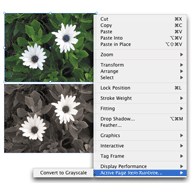 Color2Gray allows you to instantly convert placed color photos into grayscale without modifying the original color image.
Currently you probably open the original image in Adobe® Photoshop® and then convert it to grayscale. With Color2Gray the conversion takes a moment. The CMYK image is run through an on-the-fly color conversion, and the resulting grayscale output renders only on the black (K) plate. The original is unchanged.
-
 Avoid digging through scattered InDesign palettes for info – this tool displays important information about your InDesign document right were you need it, in your work area. No need to disrupt your train of work and move your mouse all over the place to bring some palette or indicator into view.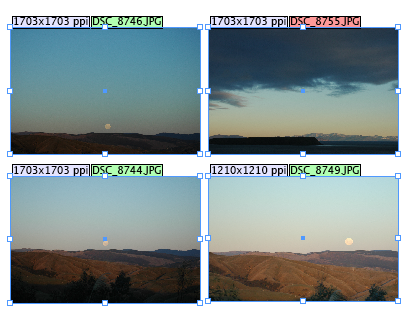
-
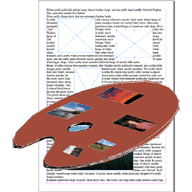 This free tool is a time-saving short-cut when sourcing multiple images for a document. ImageLibraryLoader creates a floating palette of the available images in thumbnail size, ready to be drag-dropped into your document. The palette is created automatically when the folder is opened. This tool removes the need to access and view each image individually. It works with local files and does not involve use of the cloud.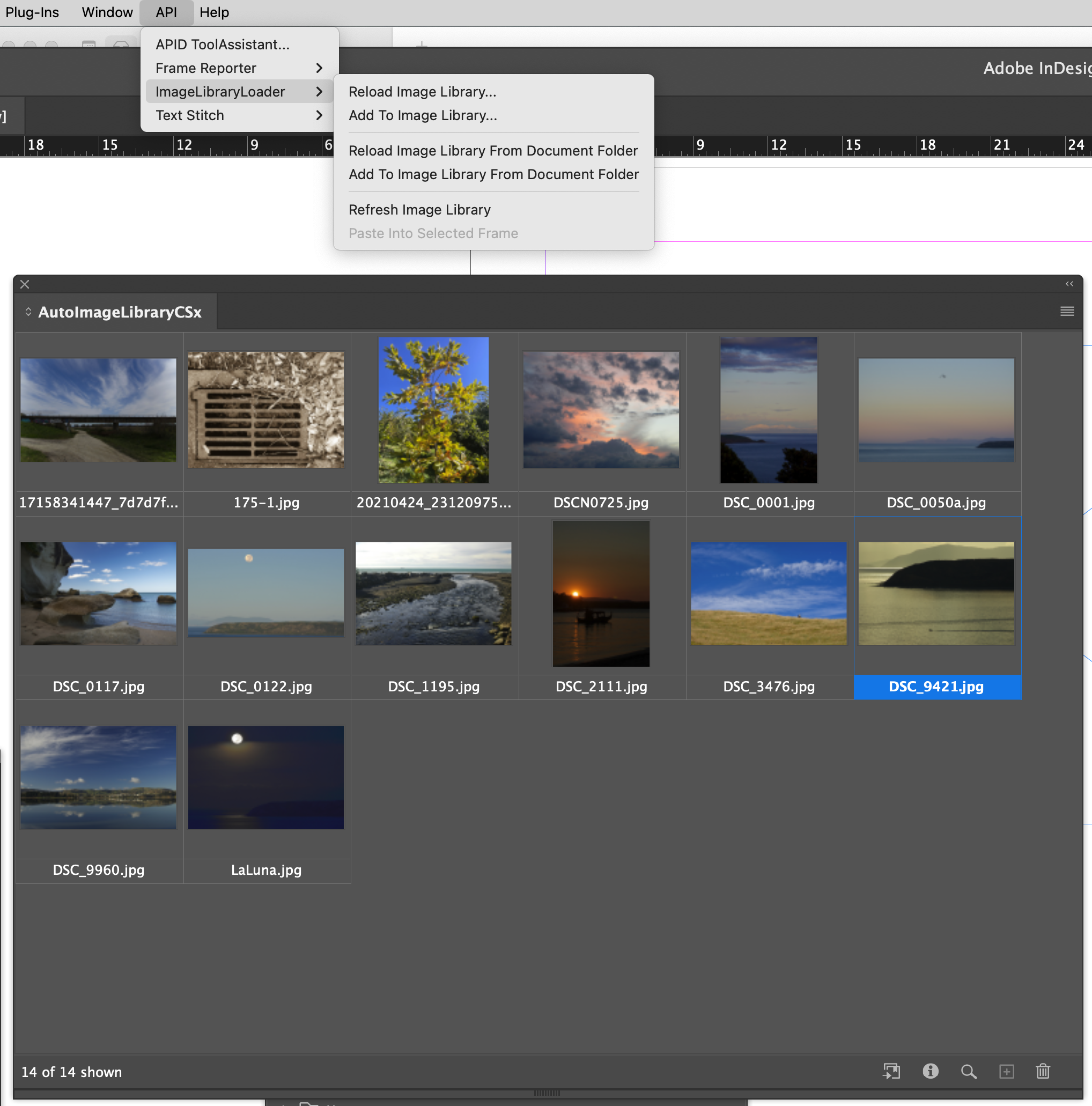
-
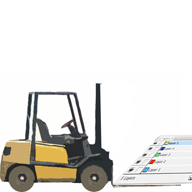 The free LayerLifter is a time-saving alternative to using the “layers palette” for moving objects between layers. First select one or more objects on a spread, and then right-click (Win) or control-click (Mac), and pick a destination layer from the LayerLifter context menu.
The cumulative time reduction on a large document could be significant. -
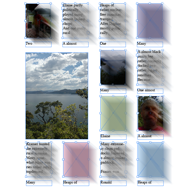 This free plug-in is a handy tool for manipulating several similar items on a page or a spread. You might want to tweak their sizes, for instance. Instead of shift-click-click-click to select each of the frames you want to work on, you choose one of the frames then use the “Select All Similar” function in LikeFindsLike dialog. Your manipulations then apply to all the “like” frames.
 -
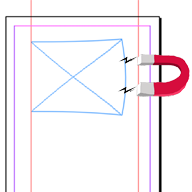 This tool has been developed to aid those working on layouts for structured, repetitive materials like forms or charts and tables. It enables multiple page items to be repositioned and resized automatically concurrently without manually grouping them.
With MagnetoGuides you magnetize one or more guides so they push or pull any ‘snapped’ items when the guide is moved. For example: a page item ‘snapped to’ a magnetic guide on one side simply moves along when the guide is moved; a page item is ‘snapped to’ more than one magnetic guide will stretch or shrink or relocate according to how the magnetic guides are moved.
-
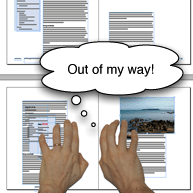 StoryParker helps you deal with page clutter. You can select one or more items and ‘park’ them on the pasteboard; StoryParker keeps track of their original position.
When you ‘unpark’ them they remember where they came from and return there instantly.
-
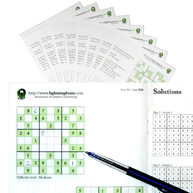 If you are publishing a newspaper, magazine or newsletter in InDesign you will be able to generate Sudoku puzzles straight into the publication by using SudukoGenerator.
 -
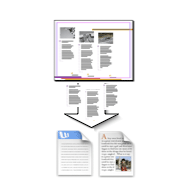 There are a number of options to export text out of an InDesign document, but in most cases you end up with a number of disparate files. TextExporter is different – it extracts all the text into a single file.
Supported output file formats:
– Rich Text Format (RTF)
– InDesign Tagged Text
– Text -
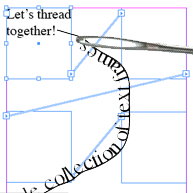 Threading together a collection of text frames is laborious. TextStitch is a free tool that will thread frames rapidly and accurately and slash the time it normally takes.
It makes a great companion to InDesign’s Data Merge functionality.
There are three main functions: auto-stitch, quick stitch and auto-unstitch.
Auto-stitch connects disparate text frames into a logical thread. Auto-unstitch can cut existing text threads without visually disturbing the document. Quick stitch offers a quicker point-and-click method for connecting text frames.
-
APID ToolAssistant is a plug-in for Adobe InDesign. You can use most of the free tools from Rorohiko Workflow Resources without purchasing a license. Purchasing the optional license unlocks some very useful extra functionality in some of our freebies – see further, ‘Licensing’.
By itself, it does not ‘do’ anything apparent – instead it assists other plug-ins to do their job. You need this plug-in installed to use most of the free InDesign tools you can find on this web site.