Before you can use the Color2Gray plug-in you also have to install our free APID ToolAssistant plug-in.
X
Close
Change History for Color2Gray
Loading...
-
WARNING: OLD VERSION
WARNING
This page is for an old version of Color2Gray, which is not available for purchase any more. This page is for the benefit of existing users with InDesign 2023 or older. If you are using InDesign 2024 or higher, please visit https://www.rorohiko.com/color2gray_pi
-
Intro
This tool allows you to convert placed color photos to grayscale without modifying the original color image. It works best for JPEG and TIFF images. As far as we know, complex, multi-layered Photoshop images don’t always work – so you might want to stick to JPEG or TIFF.
Sometimes you want a particular picture to be output as a grayscale image, yet the original image is in color.
You could open the image in Adobe® Photoshop® and convert it to grayscale, but instead you can also use this plug-in. When using this tool, the original image is not changed and remains in color, yet it is output as a grayscale image.
When outputting in CMYK, the gray image is calculated using a fixed, built-in color-to-grayscale conversion in InDesign. The resulting conversion will only render on the black (K) plate.
Note: despite some comments to the contrary, the image is NOT obtained by simply stripping away the color plates. You can easily verify that by creating a CMY (no K) image in Photoshop, save as TIFF, then use Color2Gray: the image will properly render because it takes into account the CMY channels too.
-
Installation
Before you start installing, exit out of InDesign.
Please make sure you have a copy of the APID ToolAssistant plug-in installed. Make sure you install the proper plug-in for your version of InDesign since the plug-ins are mutually incompatible. Depending on the version of InDesign, there might be multiple files and/or folders to be installed.
If you already have an APID ToolAssistant plug-in installed (e.g. because you use one of our other plug-ins), make sure it is up-to-date.
You will be installing two separate, but related software products: Color2Gray and APID ToolAssistant. For continued use you only need to purchase a license for Color2Gray. It will continue to work even when the APID ToolAssistant demo expires.
i.e You do NOT need to purchase an additional license for APID ToolAssistant.
Copy the Color2Gray.spln into the same folder as the APID ToolAssistant plug-in (typically that will be the InDesign Plug-Ins folder). Don’t worry about the icon of the .spln file: it might not be a ‘regular’ icon, and that’s OK.
-
Usage
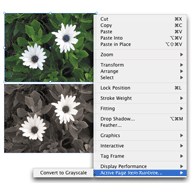
After you have installed the plug-ins, select one or more placed color images. Then right-click or control-click the selection. In the context menu there should be a menu item called API (shorthand for Active Page Item).
This menu item should contain an option Force Render as Gray which you can select to make the images render in grayscale.
After an image is converted to grayscale the context menu will change – you can convert back to a color image if so desired – the menu item changes to ‘Render Normally’.
Let us know if this plug-In is useful to you, at [email protected]. Thanks!
-
Limitations
There are currently two known limitations.
First, the conversion to grayscale is done by InDesign, and you have no control over the process.
InDesign does a pretty good job, and this will suffice for many people, but if you want more specialized conversions (e.g. switch off color management, fiddle with curves,…) then this plug-in won’t help you. In other words – it’s back to Photoshop, and create an edited grayscale copy there.
Second limitation: Color2Gray only handles simple bitmap images. It does not work on vector images (Illustrator, EPS,…), and we’ve also encountered complex Photoshop images (with multiple layers) that could not be handled by Color2Gray. Please test thoroughly and check the printed output before going live!