Before you can use the StoryParker plug-in you also have to install our free APID ToolAssistant plug-in.
X
Close
Change History for StoryParker
Loading...
-
WARNING: OLD VERSION
WARNING
This page is for an old version of StoryParker, which is not supported any more. This page is for the benefit of existing users with InDesign 2023 or older. If you are using InDesign 2024 or higher, please visit https://www.rorohiko.com/storyparker_pi
-
Intro
StoryParker is a tool for InDesign CS, CS2… CS6 that helps you cope with cluttered pages.
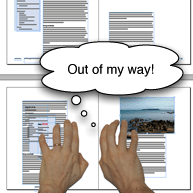
Every page item can be temporarily ‘parked’. You can put it aside, somewhere on the pasteboard, and quickly move it back to where it came from later.
Linked text frames can also be parked all together. The idea is to help you get one or more page items out of the way quickly, for example because you want to reach something that’s underneath. Later on, you can easily move the page item back to its exact original position.
The neat thing is that parked page items ‘remember’ where they came from – you can ‘unpark’ them, which causes them to fly back to the exact location they had before you parked them.
-
Installation
Before you start installing, exit out of InDesign.
Please make sure you have a copy of the APID ToolAssistant plug-in installed. Make sure you install the proper plug-in for your version of InDesign since the plug-ins are mutually incompatible. The Windows CS5.x plug-ins also come with an additional folder with a parenthesised name which needs to be copied along.
If you already have an APID ToolAssistant plug-in installed (e.g. because you use one of our other plug-ins), make sure it is up-to-date.
You will be installing two separate, but related software products: StoryParker and APID ToolAssistant. For continued use you only need to purchase a license for StoryParker. It will continue to work even when the APID ToolAssistant demo expires.
i.e You do NOT need to purchase an additional license for APID ToolAssistant.
Copy the StoryParker.spln into the same folder as the APID ToolAssistant plug-in (typically that will be the InDesign Plug-Ins folder). Don’t worry about the icon of the .spln file: it might not be a ‘regular’ icon, and that’s OK.
-
Usage
StoryParker adds a number of context menus to various page items (i.e. select page item, and do control-click (Mac) or right-click (Mac, Windows). Look for the Active Page Item Runtime menu).
Every page item can be temporarily ‘parked’. Meaning: you can put it aside, somewhere on the pasteboard, and later quickly move it back to where it came from.
The idea is to help you get one or more page items out of the way quickly, for example because you want to reach something that’s underneath. Later on, you can easily move the page item back to its exact original position. The neat thing is that parked page items ‘remember’ where they came from – you can ‘unpark’ them, which causes them to fly back to the exact location they had before you parked them.
Parked items are put on the pasteboard, and can be moved around freely from there – any movement while they are parked is ignored and forgotten the instant you unpark them.
-
More Info
For more detailed information on StoryParker, go to:
https://www.rorohiko.com/wordpress/manuals/storyparker-manual/