(Added note 6-Nov-2008: Please check the added notes at the end of the article. Yes, FM 8.x works too, and I’ve also added a way to do the patching much faster)
Recently, I was testing some ideas with various versions of FileMaker, and I found out that Instant Web Publishing with FileMaker 7 Developer on Mac OS X Leopard did not work.
I reinstalled FileMaker 7 Developer, upgraded to 7.0v3, installed the fm_70v3_osx_iwp update from the FileMaker website – and things seemed to work fine.
That is – until I quit and restarted FileMaker 🙁
I again got the message that Instant Web Publishing could not be started.
After some fiddling and fumbling, I managed to find the cause, and devise a fix for it – and that’s what is outlined here. The fix also works for FileMaker 8.x.
Caveat: use the information here at your own risk – no guarantees of any kind are given, and if things go wrong, the responsibility is yours!
As far as I can tell, the problem stems from the fact that the FM Web Publishing.app application, which is buried inside the Extensions folder, inside the Web Support folder, has some security issues that conflict with Leopard’s security measures.
If you open the FM Web Publishing.app package folder (right-click or Control-click in the Finder, and select Show Package Contents), you’ll find the following structure:

i.e. buried inside the package folder is a Mac OS X executable called FM Web Publishing. This executable makes use of the four included frameworks FMEngine, FMWrapper, MSLRuntime and OmniORB4 which are also part of the package.
The first time you use IWP in FileMaker, FileMaker will change the owner and permissions on this Mac OS X executable to be owned by the user ‘root’ and with a setuid permission. Check the terminal session screen capture below – note the ‘s’ in the -rwsr-xr-x permissions, and the fact that the owner is ‘root’ – not ‘kris’.
Initially, after you decompress and install the fm_70v3_osx_iwp patch from the FileMaker web site, the owner and permissions are not yet set up like this – it’s only when you run FileMaker after installing the new files that the owner and setuid bit are changed. That’s why FileMaker will ask for your password in order to effect these changes.
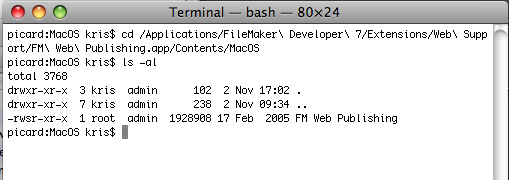
The problem has to do with the way the FM Web Publishing executable refers to the frameworks: internally it uses relative paths – and on Mac OS X 10.5.x, a.k.a Leopard, a setuid application is not allowed to use relative paths to refer to external frameworks.
If that were allowed, it would be fairly easy for a malicious program to fool the setuid-enabled program and make it refer to ‘fake’ stand-in frameworks and run malicious code with root permissions.
So, Leopard simply refuses to run this executable, and hence, IWP cannot be enabled on Leopard.
Luckily, it’s fairly easy to work around this issue.
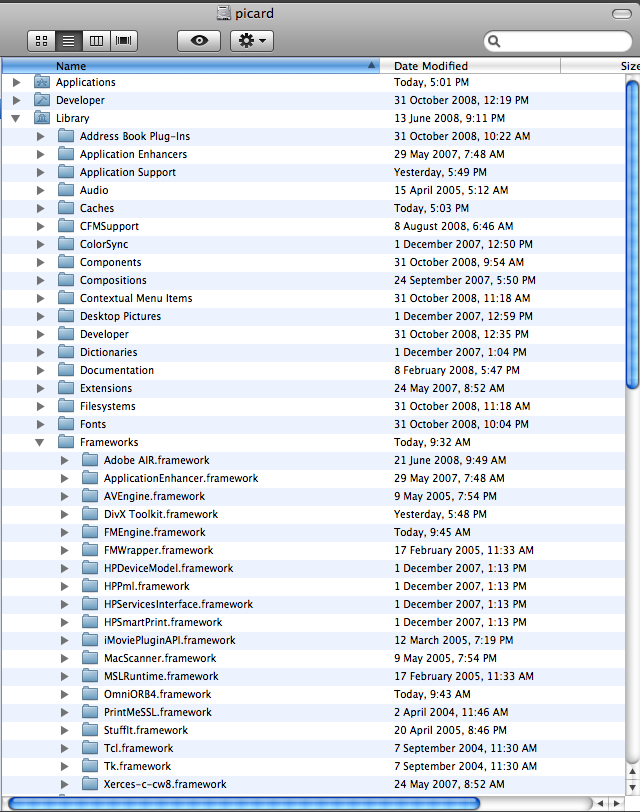
First, I copied the four frameworks to my /Library/Frameworks folder, in amongst some other frameworks that already were residing there (my computer is called ‘picard’ – after Captain Picard of the Starship Enterprise):
Secondly, I used a hex editor (I use the old faithful HexEdit, but any hex editor will do) to patch all relative paths to become absolute paths.
First I opened up FM Web Publishing executable itself and searched for references to the frameworks – which I found around position 00000630 hex:

You see @executable_path/../Frameworks/blahdiblah a few times. These are the things that need to be patched. This string means: starting from the executable’s location, follow the relative path ../Frameworks/blahdiblah
This needs to be replaced by an absolute path /Library/Frameworks/blahdiblah and padded with extra zeroes so that the total length of the block does not change – my patched version looks like this:
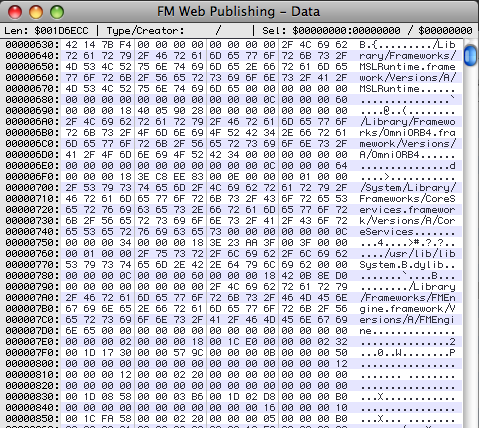
As a double-check: look at the line at position 000007F0 – it looks identical in both ‘before’ and ‘after’ screen captures, showing that I did not introduce any ‘byte shifts’ in the file.
That’s not the whole story yet – this patch fixes up the executable, but two of the frameworks themselves also have the same problem.
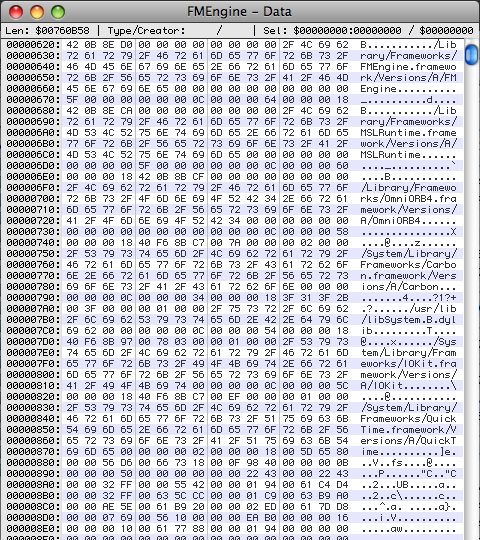
So now you need to go into /Library/Frameworks/FMEngine.framework/Versions/A and open the FMEngine file and do the following patch around position 00000620 hex. I patched it in the same way – below ‘before’:
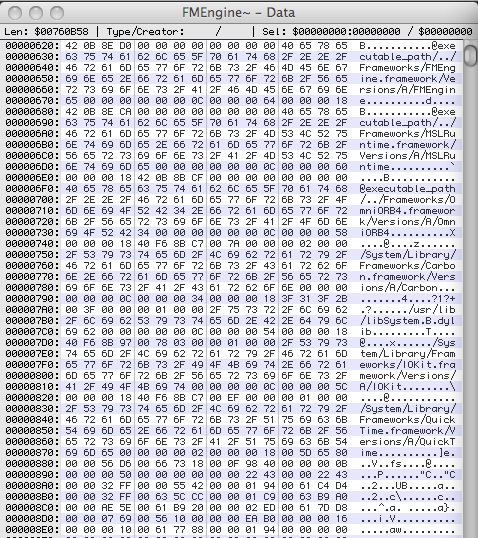
and ‘after’:
Finally, the /Library/Frameworks/OmniORB4/Versions/A/OmniORB4 file needs a similar treatment, around 000005E0 hex – first the ‘before’:
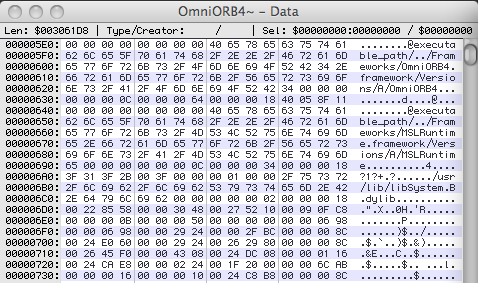
and then the ‘after’:
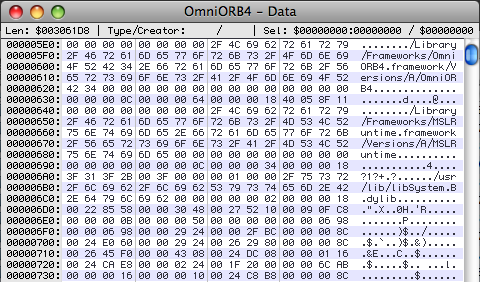
And that’s it! Now, FileMaker 7 Developer on Leopard seems to happily enable IWP!
The FMWrapper and MSLRuntime frameworks also contains relative references, but things seem to work fine without patching these – so I’ve left them unpatched. If things don’t work you first might want to patch up these remaining two frameworks in similar fashion…
I hope that this proves helpful – I love to hear feedback!
Additional notes – Added November 6, 2008
Some more info – I’ve tried it out on FileMaker 8.5 now, and it works fine – there are a few more frameworks to cope with compared to FM 7, so there’s a bit more work involved, but apart from that, the story is the same.
I’ve also come up with a shortcut to make things even easier to patch up.
Instead of storing the frameworks you find inside the FM Web Publishing.app package into /Library/Frameworks, you should first create a new folder called
/Library/Frameworks/FMFramewrk
(exactly like that!) instead, and store the copies of the embedded frameworks extracted from FM Web Publishing.app there.
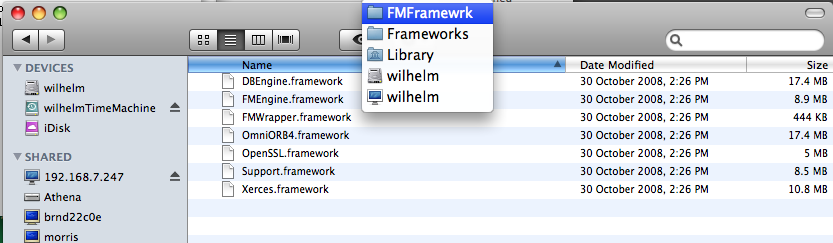
This folder name is hand-crafted such that the path prefix @executable_path/../Frameworks that you can find embedded all over the code has exactly the same length as the prefix /Library/Frameworks/FMFramewrk so we can use a hex editor and do a simple, blind textual find-and replace and replace the string
@executable_path/../Frameworks
with
/Library/Frameworks/FMFramewrk
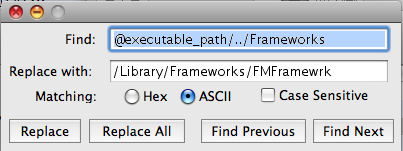
This eliminates the need for padding with zeroes, and we can do a blind find/replace on the framework files. It’s a fairly mechanical thing: just work your way through FM Web Publishing file inside FM Web Publishing.app and the all the framework copies in /Library/Frameworks/FMFramewrk, dig into them to find the binary file inside, and do the above find-and-replace operation.
A few more notes:
1. the FM 8.5 frameworks are proper ‘packages’ so you need to use the Finder right-click (or Control-click), then ‘Show Package Contents’ to get ‘into’ them.
In other words, don’t drag the frameworks icons onto your hex editor – you need to dig ‘into’ them first!
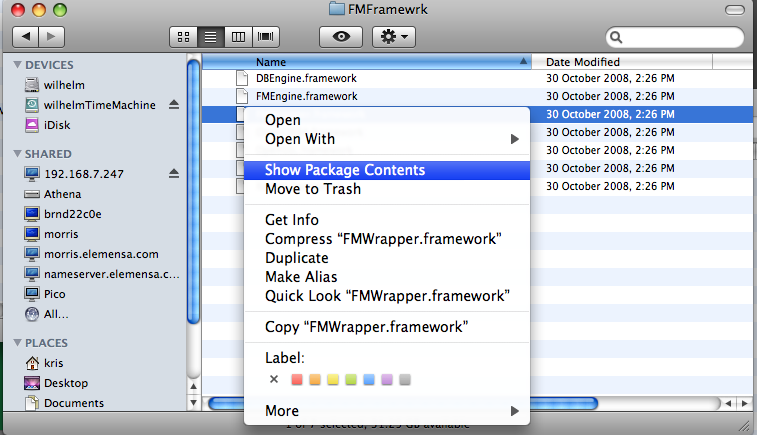
2. some people get caught out and cannot seem to patch the FM Web Publishing.app/Contents/Mac OS/FM Web Publishing file.
That is because after you’ve run FileMaker that file becomes owned by root and obtains special permissions.
Short story: change the owner and the permissions on this file before trying to hex-edit it – your account should be owner and the permissions should be 755 (a.k.a rwxr-xr-x).
Long story in case the short story does not mean much to you: the easiest way to fix this is to start a Terminal window (Terminal sits inside your /Applications/Utilities folder)
Then type the three following keystrokes (each shown between < and >)
<c><d><space>
and then switch to the Finder and drag the icon for FM Web Publishing.app into the terminal window. A pathname should be appended to what you’ve already typed.
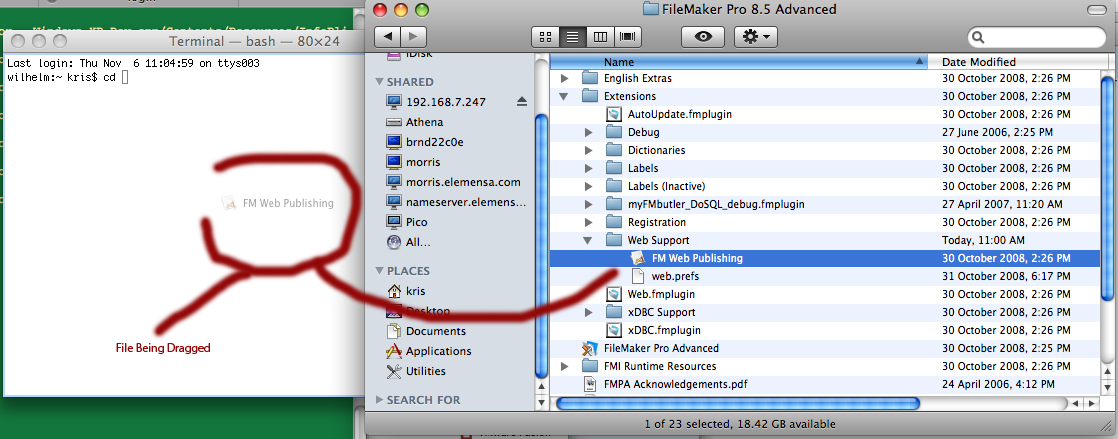
Continue typing in the Terminal window (the <backspace> is to eliminate a space at the end of the dragged path before continuing typing; the <tab> are for automatic command completion so we don’t have to type full filenames)
<backspace></><C><tab><M><tab><return>
This whole operation should result in a Terminal session with its current directory positioned at the proper directory – on my machine it looks like this:
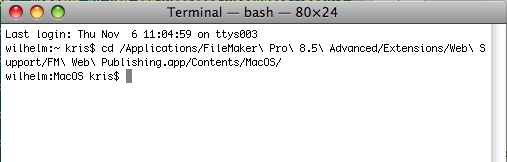
Now type the following commands (each followed by <tab> and <return>); replace yourusername by your short Mac OS X user name – mine is ‘kris’.
sudo chown yourusername F<tab><return>
…enter your password…
sudo chmod 755 F<tab><return>
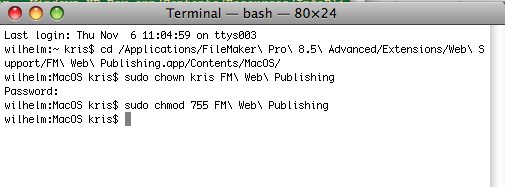
That reverts the permissions on this file to ‘normal’ after which you can edit it with your hex editor.
Cheers,
Kris