-
News:
- JSXGetURL: set curl options from script »
- ZXPSignCmd/ExtensionManager alternative: PluginInstaller handles CEP »
- JSXGetURL for ExtendScript »
- SizeLabels for InDesign »
- Access URLs from ExtendScript with Creative Cloud and InDesign Server »
- Massive InDesign Script List »
- Soxy »
- New for InDesign 2020 »
- macOS Catalina »
- Two Free Scripts Released At CreativeProWeek 2019 in Seattle »
-
Related Sites
-
Categories
0- 2020
- 2022
- 2023
- 2024
- APIDToolAssistant
- BarredText
- CC
- CC 2014
- CC 2015
- CC 2017
- CC 2018
- CC 2019
- Color2Gray
- CS5
- CS5.5
- CS6
- EPUB
- ePubCrawler
- FileMaker
- FramedWeb
- FrameReporter
- Freebies
- GREPGrokker
- ImageHorn
- ImageLibraryLoader
- InCopy
- InDesign
- InDesignProxy
- LayerLifter
- Mac OS X
- MagnetoGuides
- News
- Recipes
- Scripters & Developers
- Soxy
- Spreadulator
- StoryTweaker
- StylePainter
- Sudoku Generator
- TextExporter
- TextStitch
- Uncategorized
- Windows
- YeShore
-
Archives
0- April 2024
- March 2024
- December 2023
- February 2020
- December 2019
- November 2019
- October 2019
- June 2019
- May 2019
- March 2019
- February 2019
- October 2018
- May 2018
- December 2017
- November 2017
- October 2017
- September 2017
- July 2017
- June 2017
- May 2017
- December 2016
- November 2016
- June 2016
- March 2016
- October 2015
- September 2015
- August 2015
- July 2015
- June 2015
- March 2015
- February 2015
- December 2014
- November 2014
- August 2014
- July 2014
- June 2014
- May 2014
- April 2014
- March 2014
- January 2014
- December 2013
- October 2013
- September 2013
- August 2013
- July 2013
- June 2013
- May 2013
- December 2012
- November 2012
- October 2012
- September 2012
- August 2012
- July 2012
- June 2012
- May 2012
- April 2012
- February 2012
- September 2011
- August 2011
- June 2011
- May 2011
- April 2011
- March 2011
- February 2011
- January 2011
- December 2010
- November 2010
- September 2010
- August 2010
- July 2010
- June 2010
- May 2010
- April 2010
- March 2010
- February 2010
- January 2010
- December 2009
- November 2009
- October 2009
- September 2009
- July 2009
- June 2009
- May 2009
- April 2009
- March 2009
- February 2009
- January 2009
- December 2008
- November 2008
- October 2008
- August 2008
- July 2008
- June 2008
- May 2008
-
SizeLabels for InDesign
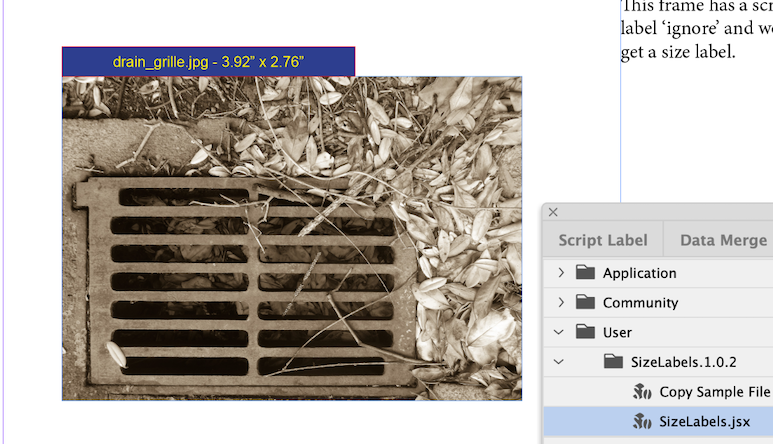
SizeLabels looks at all the frames in your document, adds a small label frame with size info next to each frame it finds.
More info here: https://www.rorohiko.com/sizelabels
-
JSXGetURL for ExtendScript
JSXGetURL enhances ExtendScript to make it easy to access servers using http, https, sftp… – e.g. to download assets from a remote server.
More info here: https://www.rorohiko.com/jsxgeturl
-
InDesign 2024 support
Most of our plug-ins now have been upgraded for InDesign 2024.
Please visit the relevant product page, then download and install the latest versions.
Make sure to read https://www.rorohiko.com/licensing to determine whether you'll need to purchase a new activation code or not.
We make task tools for Adobe InDesign
Wonderful as Adobe InDesign is there are many tasks the program doesn’t perform. Tasks that predictably soak up too many valuable hours each time you do them.
Rorohiko Workflow Resources has developed a whole range of task tools, so you can slash hours of mind numbing work down to minutes. The InDesign-compatible tools cover a variety of repetitive pre-press chores that we, or our customers have identified as missing from InDesign.
Check them out to discover where you can slash valuable time.