
FrameReporter


Frame Reporter Logo

Goal

(Download links, documentation, and extensive samples are further down)

Avoid digging through scattered InDesign palettes for info – this tool displays important information about your InDesign document right were you need it, in your work area. No need to disrupt your train of work and move your mouse all over the place to bring some palette or indicator into view.
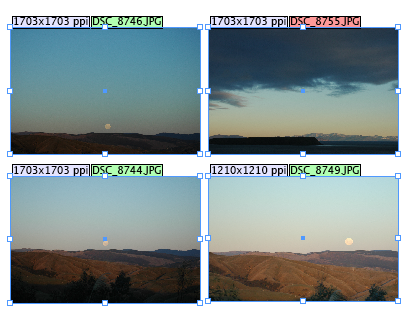
A small sample of what it does: look at the four frames shown here:Screen shot 2009-10-05 at 6.11.36 PM

Imagine you’ve been asked to place a whole lot of images, and it’s really important that the images are placed on the pages in alphabetical order of their file name. The problem is that the images look very similar, and carry similar names – how do you quickly verify you’ve placed them correctly? Furthermore, all images should be placed at the exact same scaling factor, so their effective resolution is the same. Again, how do you quickly find that out if there are any out-liers?

Look at the four selected image frames shown above: we can immediately see that

  • DSC_8755 is out of order
  • DSC_8755 has a broken link (hence a red background behind the name)
  • DSC_8749 has been scaled to a different effective resolution than the other three

Of course, there is more – FrameReporter can display the following information in little info-labels right next to individual page items:

  • A much improved overset text warning
  • Effective resolution
  • Name of the placed image
  • Path of the placed image
  • Name of the currently selected story
  • Name of the currently selected page item
  • Number of words in frame compared to total number of words in story
  • Position of text frame within a multi-frame story
  • Roadmap of all pages containing parts of a multi-frame story
  • Whether an item is overridden from the master page
  • Squareness of frame.

FrameReporter also adds new navigation features to InDesign – you can ‘jump to’ named stories or named frames.

See further (’Examples’) for a more extensive description and samples of  each of these features.

The preferences dialog shows the current range of available options:

Screen shot 2009-10-10 at 12.22.00 PM

We’re always looking for suggestions for other interesting information snippets that we could add – feel free to e-mail us at pluginsupport@rorohiko.com.

Download

You can download a 20 day time-limited, fully functional demo version by clicking the links below.

In order to use the FrameReporter plug-in you also have to install our free APID ToolAssistant plug-in, which is also available as a second, separate download.

Download the FrameReporter Plugin (Version 1.0.6. Demo Version. For InDesign CS, CS2, CS3 and CS4 on Mac or Windows; does not include the APID ToolAssistant. Don’t worry about the icon of the .spln file: it might not be a ‘regular’ icon, and that’s OK.)

To install, you will need to add three items to your InDesign plug-ins folder. Quit or exit InDesign before beginning the installation.

Both downloads (FrameReporter and APID ToolAssistant) contain separate Windows and Macintosh versions – make sure to decompress and open the proper version for your computer.

You need to install the proper version of APID ToolAssistant – there are a fair number of different versions provided (Mac/Win/CS/CS2/CS3/CS4) and you need to make sure to pick the proper one. Move this plug-in into the InDesign Plug-Ins folder (or a subfolder thereof).

Second, you need to copy both the FrameReporter.spln and the FrameReporterLib.spln into your plug-ins folder as well.

Restart InDesign, and open or create a document.

You can convert this demo version into a full version at any point in time by purchasing a US$29.00 license – when you start InDesign, you should see a ‘beg’-dialog for FrameReporter – click the Get License… button and you’ll be directed to a web page for purchasing the license.

Alternatively, you can select the API – APID ToolAssistant… menu item, select the line for FrameReporter, and click Get License…

frl

In some cases, you might get a dialog from APID ToolAssistant asking you to purchase a license, or warning it is switching to Unlicensed mode.

You should ignore these warnings – FrameReporter will run fine for the duration of its own demo period. The only noticeable effect is that all FrameReporter labels will be prefixed with the text ‘DEMO:’. Rest assured – these will disappear once you purchase a license to FrameReporter.

Usage

This plug-in can add a little ‘info label’ to any currently selected page item(s).

After installing and launching InDesign, first open or create a document (important!).

Then select the API – FrameReporter – Default Preferences… or the API – FrameReporter – Current Document Preferences… menu item to configure things to your liking.

Important remark: if the ‘info label’ has too much information, and becomes too wide, it will be suppressed. For example, the image file path name is often very long, and cannot ‘fit’ alongside the page item – and then it will be suppressed.

When that happens, you need to zoom in using the InDesign zoom tool (the magnifying glass): the deeper you zoom, the wider the page item will be – and eventually the info-label will ‘fit’.

The current version has the following features:

• For stories spanning multiple text frames, you’ll be able to see whether the story has overset text in the last text frame at the end – so when you’re clearing up an overset in a 20-frame story by editing a frame towards the start of the story, you can immediately see whether the overset is fixed without needing to scroll all the way to the end.

The ‘overset text warning’ is purposely slightly different from InDesign’s built-in overset text indication: FrameReporter also warns in the case where the overset text consists purely of white space characters.

• You can see the effective resolution of bitmap images (i.e. the resolution which combines the images’ native resolution and any scaling that might have been applied to it).

• You can see the image file name or image file path for a placed image.

• You can see when a page item is an overridden master page item.

• Stories can be assigned a name; for example, you could assign the name of the author to the story, or a short description of the content (e.g. ‘product info’, ‘contact us’), or anything else you like.Assigning a name to a story is achieved by clicking a text frame with the regular selection cursor, and then selecting API – FrameReporter – Story Label…

FrameReporter can be configured to display the story name just below the bottom of the currently selected text frame.If a story has been assigned a name, you can use FrameReporter to quickly ‘jump’ to the named story. This is handy in complex documents, with many stories.

• InDesign has a standard feature that allows you to assign a name, a.k.a ’script label’ to a page item (via the Windows – Automation – Script Label palette).

FrameReporter will display the frame name just below the bottom of the currently selected frame.
If a frame has been assigned a name, you can use FrameReporter to quickly ‘jump’ to the named frame. This is handy in complex documents, with many frames.

• You can see the relative position of a frame in the story.

• You can see what pages contain one of more text frames that are of the story.

• You can see the ’squareness’ of any selected page item; the plug-in divides the shorter side by the longer side of any selected frame, and expresses that as a percentage:

  • Square frames have a squareness of 100%. The longer and narrower a frame is, the lower the squareness.
  • A squareness of 62% corresponds to the ‘golden ratio’ – so for visually pleasing rectangles, you could aim for roughly 62% squareness.

For a more in-depth discussion of these options, please click here.

Purchase

If you find this tool is useful and want to keep on using it beyond the 20-day demo period, simply click the Get License… button in the beg dialog that is shown shortly after starting InDesign.

Alternatively, you can go to the API menu, select the APID ToolAssistant… menu item. Then click on the line with ‘FrameReporter’ in the dialog to select the product, and click ‘Get License…’.

The FrameReporter licensing cost is accounted per copy of InDesign, per machine. That means that if you have two copies of InDesign installed on a single machine (e.g. CS3 and CS4), which need both to be licensed, you’ll also need to purchase two licenses. Even if you have the same InDesign serial number in use on more than one machine, each will need its own separate FrameReporter license.

There are no provisions for upgrading or side-grading – the cost of a single license is kept purposefully low, and does not reflect the real cost nor the real value of the plug-in – instead the fee is a contribution towards further development.

To allow us to sustain the low license fee, we decided not to allow for the administrative overheads involved in tracking things like upgrades. Instead we use a very simple, automated system and we charge a fee per installed copy of InDesign.

Examples

Overset text warning

InDesign is quite laid back when it comes to text that is overset. The only visual indication you get is that the last text frame of the story shows a red plus sign in the out port.

Enter FrameReporter. For stories with overset text it will add a visual indicator to any frame of the story – whether that frame is at the beginning, in the middle or at the end of the text story.

That’s very handy if you’re trying to fix overset text by removing some words from the text: you can be editing frame 9 of a 100-frame story, and you’d immediately know that the overset has been fixed when the indicator disappears.

An example: imagine that the four text frames you see are actually spread out over four pages (instead of sitting on a single page – I’ve done that to make it easier to explain things).

There’s overset text, and I am going to clean up the text in the second frame of the four-frame story.

I selected the second text frame. The little [+] in the reddish indicator near the out connector of the selected text frame indicates that the story has overset text:

picture-39

I now select some words that I want to delete from the frame:

picture-46Hit the ‘Delete’ key to shorten the text – and the overset warning disappears. No need to go check the last frame of the story!picture-54

Named Stories and Named Frames

Select the API – FrameReporter – Current Document Preferences… menu item and make sure the two options Show Frame Label and Show Story Label are selected:

picture-210

Create a document with a two multi-frame stories (create two sets of text frames, and thread each set together).

Select any frame in one of the two threaded sets and select the API – FrameReporter – Story Label… menu item:

picture-64

Enter a Story Label (for example ‘Silly Story’):

picture-84

Do the same with the second set of frames – name that one ‘Stupid Story’.

Each time you select any frame of either story, you will see the name of the story displayed in the little green info-label underneath the selected frame:

picture-92You can also name the individual frames. Display the Script Label palette by selecting the Window – Automation – Script Label or (for InDesign CS) Window – Scripting – Script Label menu item.

Select a frame, and type a name for it into the script label – I’ve selected the last frame of the stupid story.

picture-10

IMPORTANT: After typing the label, click in an empty spot on the page (the script label palette is a bit odd, and unless you handle it properly, the label won’t take. Clicking in an empty spot on the page makes it ‘take’).

Re-select the frame – in addition to the green info-tag with the story name, it will now also display a yellow info-tag with the frame name.

picture-118

Now you can also use the API – FrameReporter – Jump To Story… or API – FrameReporter – Jump To Frame… menu items to quickly jump to a particular named story, or a particular named frame:

picture-142

This can help when navigating a big, complex, multi-story document.

Show Frame and Story Wordcounts

This option of FrameReporter is handy when you’re aiming for a particular word count. As you’re editing the story, you are continuously informed about the total number of words in the story, as well as the number of words in the current text frame.

picture-8

In the sample screen capture, I have 79 words in the current frame, out of a total of 242 words in the whole story.

These word counts are dynamic. As we all know ;-^ , ‘nseque’ is preferrably spelled as two words, so let’s split up ‘nseque’ into ‘nse que’ by adding a space character:

picture-11Note that the word counts have automatically updated to 80 and 243!

Show Number of Frames Per Story

With this option, it becomes easy to know your position along a story – it helps you navigate the story.

picture-12In this example, the complete story runs through four frames, and the currently selected frame is the third of these four.

Overridden Master Page Items

Another thing that’s hard to see in InDesign are overridden master page items.

Master page items showing through on a document’s pages are easily recognizable because their frame is drawn with a dotted line.

But once a master page item is overridden, there is no simple way to tell that the item is a master page item. Still, overridden master page items behave slightly different to normal page items.

Check the following screen shot:

picture-17

The bottommost, cyan page item is an overridden version of the cyan item on master A. I’ve repositioned it to make it clear it’s overridden, but it still retains some relation to the original item that sits on master A.

If I change the color of the cyan item on master A to green, this is what happens:

picture-18

Now, let’s switch on FrameReporter and select both frames:

picture-19

Now it is easy to see that the green item is actually an overridden master page item.

Show Image Effective (Scaled) Resolution

This information is identical to the resolution info that is provided on the Info palette. The main advantage of this feature becomes apparent when you want to check the effective resolution of a whole lot of images.

Instead of selecting them one by one and looking at the info palette, I can simply select all of them, and see their resolutions all at the same time.

In this example screen shot I have selected two placed images. You can see that the Info palette does not show any resolution info – it cannot handle multiple selections.

picture-21

Squareness

This feature gives you an idea of how far from or how close to square a particular frame is.

A value of 100% is completely square, anything less than 100% is a rectangle – it does not matter whether the rectangle is in portrait or landscape orientation.

Check the following screen shot:

picture-22You can see that the two ’squares’ are not completely square because they have a squareness below 100%.

The two rectangles are both ‘golden ratio’ rectangles – which are considered the most ‘balanced’ and visually pleasing kind of rectangle by many – 62% is the squareness of a ‘golden ratio’ rectangle.

Show Which Pages Contain Parts Of A Story

This is a slightly more complex information – it is essentially a roadmap for the current story. Check the following screen shot:

picture-14

I can tell that the currently selected frame is part of a multi-frame story.

Let’s first ignore the (3), the number between parenthesis; we’ll get to that later.

Before passing through the current selected frame, the story appears in text frames that live on page 1 and  2 (Pgs. before: 1,2)

After passing through the selected frame, the story appears in a text frame on page 6 (Pgs. after: 6).

Furthermore, on page 1, I can also see that the story goes through three text frames – 1(3) means: on page 1 occurring 3 times. That’s what numbers between parenthesis are about: they show you when there are multiple linked text frames for the same story on a single page.

As you can see, this FrameReporter option allows me to see a whole roadmap for the story in the blink of an eye!

Configuration

All of the options shown above can be activated or deactivated as desired through the API – FrameReporter – Current Document Preferences… menu item.

Screen shot 2009-10-10 at 12.22.00 PM

You can select multiple options – all the selected options will be shown concurrently by FrameReporter.

Changing these options will only affect the current document – each document carries its own FrameReporter settings.

There is also the FrameReporter – Default Preferences… menu item which allows you to set up the default preferences to use when no preferences have been chosen for a particular document.

Version history:

3-Nov-2009 Version 1.0.6

  • Fixed issue where placed EPS images were ignored and did not get a frame label
  • Much faster – the previous version sometimes caused noticeable delays.
  • Split the single .spln into two .spln files
  • Fixed incorrect display of some filenames and paths (e.g. what was shown as ‘Picture%201.jpg’ is now properly displayed as ‘Picture 1.jpg’)

9-Oct-2009 Version 1.0.5

  • Added support for showing placed image name
  • Added support for showing placed image path

21-Mar-2009 Version 1.0.4:

  • Fixed handling of default settings

19-Feb-2009 Version 1.0.3:

  • Fixed ‘Jump To Story…’ in CS3 or higher

16-Feb-2009 Version 1.0.2:

  • Added navigation features (jump to named story/jump to named frame)
  • Can display story name and frame name
  • Uncluttered the info label by separating it into multiple smaller regions

16-Jan-2009 Version 1.0.1:

  • Added option to show list of pages that contain the currently selected story
  • Added option to show whether a page item is an overridden master item

24-October-2008 Version 1.0:

  • Initial beta release

Back to top

Back to the InDesign Plug-Ins page

Back to Home Page