TextExporter

Goal
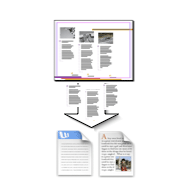
Export all the stories of an InDesign document into a single file.
Supported output file formats:
- Rich Text Format (RTF)
- InDesign Tagged Text
- Text
TextExporter supports Mac & Windows versions of InDesign and InCopy CS, CS2, CS3 or CS4.
You can try out the full range of TextExporter features for a demo period of about 20 days on any workstation, assuming you’ve never before installed TextExporter or APID ToolAssistant on that particular computer.
After the demo expires, TextExporter will remain functional. However, its functionality will be reduced to a ‘lite’ version. The ‘lite’ version of TextExporter is free and will continue to work with an unlicensed copy of APID ToolAssistant.
In order to retain access to the full range of TextExporter features, you will need to purchase a license for APID ToolAssistant - see further for more info. A single license for APID ToolAssistant costs US$25, a dual personal license is US$45 – more info can be found on the APID ToolAssistant web page.
Normal preferences dialog:
‘Lite’ preferences dialog:
Get More TextExporter Features with a licensed APID ToolAssistant:
The APID ToolAssistant plug-in is the core of TextExporter, and can be used in two modes: either in unlicensed (free) mode, or in licensed mode.
The full range of features for TextExporter is only available to users with a licensed copy of the APID ToolAssistant. After the demo period of APID ToolAssistant lapses, TextExporter will be reduced to a ‘lite’ version until a license for APID ToolAssistant is installed.
The features of the licensed version include:
- To be able to export the text in frame-by-frame order instead of story-by-story order
- To be able to suppress text items on invisible layers
- To force all colored text to black, so, for example, white text becomes visible in RTF
- To convert bulleted and numbered items in the text so they export (the standard RTF export function of InDesign does not export the bullets when the bullets are part of a paragraph style).
- To be able to predefine export preferences, and then use a fast, dialog-less export function (handy if you need to export a succession of multiple documents)
- To be able to be automate TextExporter from AppleScript, VBScript, ExtendScript.
To purchase a license, selected the API – APID ToolAssistant… menu item, select the APID ToolAssistant entry in the list, and click the Get License… button.
Make sure you read the licensing information here.
The most important thing to be aware of: APID ToolAssistant must be licensed per installed copy of InDesign. If you have two computers with InDesign, you need two licenses. If you have two copies of InDesign on the same computer, you need two licenses. For those cases, check the dual personal license offering on this web page.
Download
Before you can use the TextExporter plug-in you also have to install our free APID ToolAssistant plug-in, which is available below as a second, separate download.
Download TextExporter plug-in (version 2.1.3. For InDesign CS, CS2, CS3 and CS4 on Mac or Windows; does not include the APID ToolAssistant. Don’t worry about the icon of the .spln file: it might not be a ‘regular’ icon, and that’s OK).
- Macintosh APID ToolAssistant:
- Windows APID ToolAssistant:
Let us know if this tool is useful to you, at pluginsupport@rorohiko.com. Thanks!
Installation
Please make sure you have a copy of the APID ToolAssistant plug-in installed.
Make sure you install the proper plug-in for your version of InDesign or InCopy. CS, CS2, CS3 and CS4 plug-ins are mutually incompatible.
If you already have an APID ToolAssistant plug-in installed (e.g. because you use one of our other plug-ins), make sure it is up-to-date.
Copy the TextExporter.spln into the same folder as the APID ToolAssistant plug-in you installed (typically that will be the InDesign Plug-Ins folder). Don’t worry about the icon of the .spln file: it might not be a ‘regular’ icon, and that’s OK.
Usage
- Open the InDesign document you wish to export text from.
- Select the ‘API – Text Exporter – Export With Dialog…’ menu item.
- A “Text Export Options” dialog should come up. Select the text gathering method you want (see the text gathering section below for more details).
- Select the page range you want to export text from.
- Click ‘OK’ to start the export. After a little while, a file-save dialog will appear, so you can select the location of the exported text. Choose a destination folder and a filename and click ‘OK’.
Text Gathering and Reading Order:
This plug-in supports two methods of text gathering:
- Horizontal, then vertical (letter gathering order)
- Vertical, then horizontal (newspaper columnar gathering order)
Additionally, you can also define the reading order as left-to-right (most European languages) or right-to-left (Hebrew, Arabic,…)
The first method ‘Horizontal, then vertical’ will sort all text frames you wish to export text from in terms of their position relative to the top of the page. The text frame that is closest to the top will be exported first and the one closest to the bottom will be exported last. If two or more text frames are at the same distance from the top, then the text frame that is earlier in the natural reading order of the page will be exported first.
The second method ‘Vertical, then horizontal’ will sort all text frames you wish to export text from in terms of their horizontal reading order. The text frame that is first in the natural reading order will be exported first. If two or more text frames are at the same horizontal reading order position, then the text frame that is closest to the top of the page will be exported first and then the second closest and so on.
By default, with a Text Ordering setting of Story By Story, the text gathering method will be temporarily ignored when the plug-in encounters a text frame that is part of a sequence of text frames linked to a story. The plug-in will find all the linked text frames on the page or document (depending which type of export you chose) and sort them consecutively in story order regardless of their position on the page or document. Then the plug-in will resume the normal text gathering method.
Text Ordering (only with licensed version of APID ToolAssistant):
By default, TextExporter will export story by story – so if a long story has been scattered over many text frames, the story will be exported as a whole when the first text frame is encountered in the gathering and reading order. If additional text frames of the same story are encountered during gathering and reading, they are ignored.
If you have a licensed version of APID ToolAssistant installed, you can also choose to export frame by frame Stories that are scattered over many text frames are then exported as separate ‘chunks’ – one chunk for each text frame. Depending on the document at hand, the visual appearance of the exported RTF will be a little closer to the original than when exporting story by story.
Force All Text To Black (only with licensed version of APID ToolAssistant):
By default, text is exported in the same color as used in the InDesign document – so any white text is exported as white text in the RTF file. That might mean that some text that is clearly visible in InDesign (because it is white, but positioned above a dark backdrop), becomes invisible in RTF (as it will be shown white on white). The Force All Text To Black option ignores any text color and exports all text as black.
Emulate Bullets (only with licensed version of APID ToolAssistant):
TextExporter relies on the built-in RTF export functionality provided by InDesign. This export does not handle text formatted with a bulleted or numbered paragraph style as supported by InDesign CS2 or higher. The bullets disappear from the exported text because they’re part of the style – they are not part of the exported text.
By enabling this function, the exported text will include the missing bullet characters.
WARNING: this option will modify the original document and convert all style-based bullets and numbering in the document text to explicit bullets prior to export. When closing the original InDesign document, you probably don’t want to save changes.
Ignore Stories on Master Pages:
Uncheck this option to export master page stories.
Ignore Stories on Pasteboard:
Uncheck this option to export stories on the pasteboard.
Ignore Invisible Stories (only with licensed version of APID ToolAssistant):
Check this option to exclude stories that are fully contained on an invisible layer. Remark: as soon as one or more frames of a story are on a visible layer, the story will be exported, even if the bulk of its text frames is invisible.
Ignore Stories With Less than # Characters:
Check this option to exclude stories with less than a certain number of characters.
Export As:
Supported file formats:
- Rich Text Format (RTF)
- InDesign Tagged Text
- Text
Additional options available with a licensed APID ToolAssistant:
If your copy of APID ToolAssistant is licensed, (or if APID ToolAssistant is still in its time-limited demo mode), you can pre-define export options via the ‘API – Text Exporter – Default Export Settings…’ menu item.
This will make a “‘Text Exporter’ Default Settings” dialog appear. Any settings you define here will serve as default settings for subsequent exports.
If you want to export text from a document using these default settings, you can also choose the ‘API – Text Exporter – Export’ menu item – this will export the text without any further ado. It will use a filename based on your document’s name, but with a .rtf or .txt file name extension.
Be careful when using this option – any existing .rtf or .txt file with the same name will be overwritten without further warning.
Finally, if you need to batch-process many InDesign files, you could create an AppleScript or VBScript or ExtendScript to open/export/close these documents. In the subfolder ‘Automation’ are some short sample scripts that demonstrate how to call the Text Exporter ‘Export’ function from a script.
Let us know if this plug-in is useful to you, at pluginsupport@rorohiko.com. Thanks!
Version history
31-December-2009 – Version 2.1.3:
- Can now optionally convert bullets and numbering before export, so bullets and numbering become part of the exported text.
27-November-2009 – Version 2.1.2:
- Improved frame-by-frame collection: TextExporter has a new algorithm to try and ‘guess’ the logical reading order of frames on the spread.
- Fixed issue with ‘Convert Text To Black’ on some documents
7-November-2009 – Version 2.1.1:
- TextExporter 2.1.0 did not allow story-by-story export in InDesign CS and CS2 – fixed now.
- Frame-by-frame export now also exports contents of anchored frames
- CS3 export sequence does not export in reverse order any more.
4-November-2009 – Version 2.1.0:
- TextExporter 2.0.9 did not work with InDesign CS and CS2 – fixed now.
- Fixed unreasonably slow ‘text to black’ feature.
- Fixed issue where TextExporter occasionally inserted separating newlines into the exported text in the wrong spot.
31-October-2009 – Version 2.0.9:
- Fixed extreme slowdown in version 2.0.8 – what should take seconds was taking many minutes or even longer.
9-October-2009 – Version 2.0.8:
- Improved RTF export quality for CS3 and CS4. Normally, TextExporter goes through two export phases: first it exports individual stories to a temporary file, then appends that temporary file to a big text frame in a temporary InDesign document, and finally exports the big text frame – so in all, the same text is exported twice, and each time it is exported, there is some ‘decay’. In CS3 and above, TextExporter now uses a different method without the use of temporary files, and there is only a single export phase, which improves the quality of the exported RTF document.
- Can convert all text to black during export (so white text becomes visible in the RTF file)
- Can export frame-by-frame instead of story-by-story
5-December-2008 – Version 2.0.7:
- CS4 support
- InCopy Support
- Workaround for a CS4 ExtendScript bug that caused InDesign crashes on startup
<not dated> – Version 2.0.2-2.0.6:
- Internal releases – not officially released
17-May-2008 – Version 2.0.1:
- Fixed automation samples (AppleScript/VBScript/ExtendScript)
15-May-2008 – Version 2.0:
- Now uses APID ToolAssistant instead of Active Page Items Runtime
- Support for right-to-left reading order (e.g. for Hebrew or Arabic)
- Additional features are available with licensed copy of APID ToolAssistant:
- Allows suppression of invisible stories
- Can define Default settings
- Dialog-less Export function
- Can be automated from AppleScript/VBScript/ExtendScript
15-June-2007 – Version 1.0.2:
- Added CS3 support
3-August-2006 – Version 1.0.1:
- “Export Text” command is now available in the API menu (in the menubar)
- Fixes issue related to the exclusion of some stories during export.
3-July-2006 – Version 1.0:
- Initial release


