Soxy

Soxy Logo

Download

The download link is at the bottom of the page – we have a time-limited fully functional demo version available for download.

What it does

There’s a common problem when there are multiple versions of applications like Adobe® InDesign®, QuarkXPress®, Adobe Illustrator®… installed on the same computer.

Double-clicking a file’s icon will often cause the wrong application version to launch. As a result, you might unwittingly re-save a document into a more recent file format, which could be a bad thing. Maybe it’s a customer file, and the customer might not be able to open the updated file when you e-mail it back to her.

To work around this problem on Mac OS X and Windows, we have created SoxySoxy fixes the problem by working as a ‘go-between’ for these applications, a bit akin to a traffic cop.

Soxy is priced at US$19.00 per workstation. If you need more than 10 licenses for your department or workshop – contact us at sales@rorohiko.com to discuss a site license.

We use PayPal as our payment processor, but all you need to pay us is a credit card. To purchase simply click Get License… on the ‘beg’-dialog Soxy displays when you double-click it, and follow the instructions.

When you double-click any of the supported document types, Soxy will open them. It will quickly analyze the file, determine its version (e.g. InDy CS, InDy CS2, InDy CS3, QXP 7, QXP 8,…), and it will then forward the document to the appropriate version of the associated application.

This application then opens the document for you to see. As a bonus, Soxy will also change the document file’s icon to a more appropriate icon, instead of the generic Soxy icon that will be initially assigned to any documents handled by Soxy.

Currently, the Soxy supports .indd, .indt, .incd, .incx, .icml, .ai, .pdf, .qxp and .qxd files. We’ll be adding more file formats to future versions of Soxy. Please let us know what formats you think we should look at next by e-mailing us at support@rorohiko.com!

Downloading

To download a fully functional, time limited (20 days) demo version of Soxy for Mac OS X or Windows, click the download link at the bottom of the page. You can convert the demo into a fully functional version by clicking the Get License… button when you double-click the Soxy application icon.

How-to movies

http://www.rorohiko.com/wordpress/2009/11/23/soxy-fights-an-army-of-unknown-pdf-files/

Installing (Windows)

The Windows version of Soxy is still in beta. Detailed instructions have not been written yet – check this space, we’ll have some documentation up in the near-term future.

The Windows version is quite similar to the Mac version, so reading the Mac instructions can give you a good idea of what to do and what to expect.

Installing (Mac OS X)

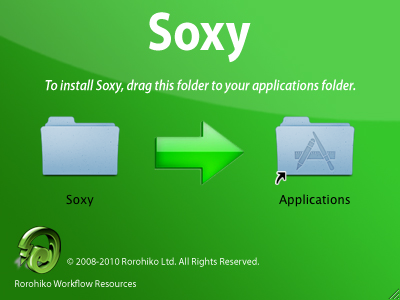
Open the .dmg file and drag the Soxy folder to your Applications folder.

installing

Let’s say you want to use Soxy for InDesign files.

Go find the Soxy application icon in the folder you just copied into your Applications folder. Double-click the Soxy application icon.

configure

Double-clicking Soxy’s icon brings up the Soxy configuration screen.

When you’re running a demo version of Soxy, you’ll first be presented with a ‘beg-dialog’ where you can click Get License… to initiate the procedure of purchasing a Soxy license. For now, click OK to get past the beg-dialog.

The configuration screen looks similar to this:

Screen shot 2009-11-19 at 6.24.53 PM

In the left column you see a list of document main types that Soxy knows how to recognize. For each of them, the rightmost column either lists the application it would use to open that particular document type, or it shows the words Version-dependent.

Click the disclosure triangle in front of a version-dependent file format to get more information.

Screen shot 2009-11-19 at 6.27.27 PM

To change any of these, simply select the line by clicking it. Soxy will show some of your installed applications – those that it thinks can open that particular document type. You choose amongst them by ticking the checkbox in front of the application you want Soxy to use.

Screen shot 2009-11-19 at 6.28.47 PM

In the sample shown above, InDesign CS documents will currently be opening into InDesign CS, and I have a whole host of other InDesign versions on my computer that could also open these documents for me.

When Soxy is launched for the very first time, it will automatically scan your hard drive and try to find all interesting applications. That process takes a little while, and is fairly thorough, but it might still miss some applications. Also, you might install a new version of some supported application, some time after you already have installed Soxy.

In those cases, where you don’t see an application listed in the main Soxy screen shown earlier, you will need click the Find Executables button in order to make Soxy re-scan your drive and add the missing application to the list of applications available.

If desired, you can also remove some of the applications listed in case they are irrelevant to your particular workflow.

Go to the Soxy – Preferences… menu to see the current list of executables:

Screen shot 2009-11-19 at 6.31.36 PM

This shows a list of applications that Soxy knows about.

You can remove some of these by selecting the entry, and clicking the red ‘-’ button. You can add additional applications by clicking the green ‘+’ button.

The Other tab has some rarely used settings – on the Other tab you’ll find a checkbox that allows you to turn off the automatic ‘icon correction’ feature in Soxy, for those rare cases where it interferes with file modification dates.

Using Soxy

Using Soxy is easy: if you have ticked the checkbox in the Soxy window so it handles the document type at hand, all you need to do is double-click the document.

Soxy also works as an intermediate when using InDesign’s Edit Original function on the Links palette – instead of opening a placed .ai file in the latest version of Illustrator, InDesign will dutifully open the document with Soxy, which will in turn pick your preferred version of Illustrator.

soxyeditorg

Initially, all files assigned to Soxy get a generic icon, with the word ‘Soxy’ faintly visible on the icon.

When you double-click such a file, Soxy will analyze it and replace the generic icon with a more appropriate document icon – in this case the file was actually an Illustrator CS2 file, so the icon would become a proper Illustrator CS2 icon.

picture-11

Alternatively, if you had decided to not have Illustrator files be handled by Soxy when double-clicked, you could still drag/drop also the document file onto the Soxy icon. It will adjust the icon and open the document in the appropriate version of the associated application.

An example: assume you have both InDesign CS3 and InDesign CS4 installed, and you already have InDesign CS4 running.

Dragging an InDesign CS3 document onto the Soxy application icon in its default configuration will launch InDesign CS3 and open the document in InDesign CS3, even though InDesign CS4 is already running.

Soxy and ExtendScript

Soxy also has some smarts when it comes to handle InDesign ExtendScript files. ExtendScript files (with a .jsx file name extension) can be placed anywhere on the computer – you’re not forced to put them into the Scripts folder any more.

Double-click the .jsx file, and Soxy will run the script in InDesign.

If you want, you can also ‘auto-target’ your .jsx files. For example, you can simply open the .jsx file in a text editor and add a comment line:

// InDesign CS3

near the beginning of the script, and Soxy will automatically run the script in InDesign CS3 each time you double-click it.

Example: create a small .jsx file helloFromCS3.jsx with in it:

// InDesign CS3
alert("hello");

Put the script file on the desktop. Assuming you have InDesign CS3 installed, when you double-click it, InDesign CS3 will launch, and display an alert dialog with hello in it.

Soxy also honors scripts that use the #target keyword.

Another neat feature of Soxy: when you look at a script in the InDesign Scripts Panel, you can right-click it and use the Edit Script function. However, without Soxy you don’t really know whether your script will be opened by the appropriate ExtendScript Toolkit – often it’s the wrong one – e.g. ExtendScript Toolkit CS4 might open your script while you’re trying to debug a script in InDesign CS3.

Once you let Soxy handle your .jsx files, all will be well: it will automatically pick the correct ExtendScript Toolkit to use.

Soxy and Adobe Bridge

Soxy also works well with Adobe Bridge. It’s very similar to how you go about it in the Finder. First, select the Bridge CSx – Preferences menu, and then go to the File Type Associations section.

soxyeditbridge

Find the file name extension you want to handle with Soxy, and simply select Soxy from the Bridge preferences popup.

That’s all there is to it – double-clicking the file in Bridge will now use Soxy, and that means you can now handle multiple versions of InDesign or Illustrator through Bridge!

Options Dialog

You can hold the <Option> (a.k.a. <Alt>) key while drag/dropping or double-click-opening a document with Soxy.

This will bring up a dialog for routing the document to an alternate application version.

soxylaunc

There’s a bit of a trick to it; the proper sequence is:

  • double-click document icon in the Finder or Explorer
  • immediately after the double click (and I mean, immediately), start holding the <Option> key until the dialog appears.

or

  • click document icon in the Finder or Explorer
  • drag document icon onto Soxy’s icon, don’t release the mouse button yet
  • press <Option>, then end the drag by releasing mouse button
  • keep <Option> down until dialog appears

This dialog also comes in handy if you want to get rid of a whole lot of generic icons without being forced to open each and every file.

Suppose you have a folder full of generic-Soxy-iconed files. Select all of them, and double-click one of the selected files, then, a split second later, start holding the <Option> key. Wait until the dialog appears, and then click Cancel.

Soxy will now assign the proper icon to all files, but it won’t open any of them – that’s handy if you want to get proper icons on a few hundreds of various documents in one go!

Purchasing

If you like Soxy enough to purchase a license, simply install the demo version as outlined above, and then double-click the Soxy application icon.

picture-2

When the ‘beg-dialog’ appears, click the Get License… button.

You’ll be directed to a web page where you can begin the purchase and registration process. In case you have a pre-paid coupon code for Soxy, you can enter it on this web page and skip the payment part of the process, or get a rebate on the price.

Once the process is complete, a license file will be e-mailed out to you by our license server – this might take a little while; in most cases it takes around 15 minutes for the e-mail to arrive. Make sure you check your e-mail spam folder – often, our license files are mistaken for spam by over-enthusiastic anti-spam software.

Once you receive the license file, re-launch Soxy again, and now click Import License… Then direct it to import the license file you just received. Keep the license file in a safe spot in case you need it to re-install Soxy.

In case the license file does not arrive within an hour or so, e-mail us at support@rorohiko.com so we can help you out.

In case you have lost your computer’s license file and you need to re-install Soxy, simply go through the same motions – our license server will recognize your computer from the previous license request, and will re-send the license file without taking you through another payment process.

Keep in mind that the Soxy license files are per-computer – if you have two computers, or when you buy a new computer, you’ll need to purchase another Soxy license file – you need one for each individual computer.

We sell Soxy at a very low price, and to allows us to do that we do not allow for any administrative overheads that would be involved with license transfer, as found in more expensive software packages. Instead, we chose to keep things simple: one license per computer.

Issues

If you have not upgraded to Mac OS X 10.5.6 or higher, you have to know that Soxy sometimes causes the well-known ‘peek-a-boo’ bug in InDesign CS3 to rear its ugly head. It seems to be especially bad when you have the Mac OS X Leopard ‘Spaces’ feature enabled.

InDesign CS3 decides to hide itself, and stays hidden – and only a force quit can bring things back under control. The issue is fixed with Apple’s 10.5.6 update to Leopard.

Version history

Version 1.0.1 for Mac – 24 November 2009

  • An Extendscript file opened with Option/Alt click is now treated as a Generic Extendscript file.
  • Fixed bug where you couldn’t untick the “Open with Soxy” checkboxes.
  • Other Bug fixes.
Version 1.0.1:
- An Extendscript file opened with Option click is treated as a
Generic Extendscript file
- Fixed bug where you couldn’t untick the “Open with Soxy” checkboxes.
- Other Bug fixes.

Version 1.0.0 for Mac – 19 November 2009

  • First official release for Mac OS X
  • Added option to associate Soxy with file extensions
  • Improved Extendscript support
  • Updated icons.
  • Bug fixes
  • Known issues: if a file type is already associated to an older version of Soxy before running Soxy 1.0, you won’t be able to disable the ‘Open with Soxy’. To work around this, do Get Info on any sample of the problem-filetype (e.g. a .pdf file), and set the ‘Open With’ to anything but Soxy. After that things should work.

Version 0.2.1b for Windows – 1 November 2009

  • Windows beta bug fixes.

Version 0.2.0b for Windows – 29 October 2009

  • Windows beta version released.

Version 0.1.5b for Mac – 30 May 2009

  • Added support for QuarkXPress 7 and 8.
  • Added support for InCopy CS4
  • Added support for InDesign Extendscript CS2, CS3, CS4.
  • User interface update.
  • Bug fixes.

Version 0.1.3b for Mac – 5 May 2009

  • Initial beta release.

Downloads:

  • Fully functional time-limited demo version.
  • Expires after 20 demo days.
  • Licenses costs US$19.00/seat.

Latest Release For Mac OS X (1.0.1):

Download Soxy for Macintosh

Latest Beta For Windows (0.2.1b):

Download Soxy for Windows

Back to top

Back to Home Page